See the difference
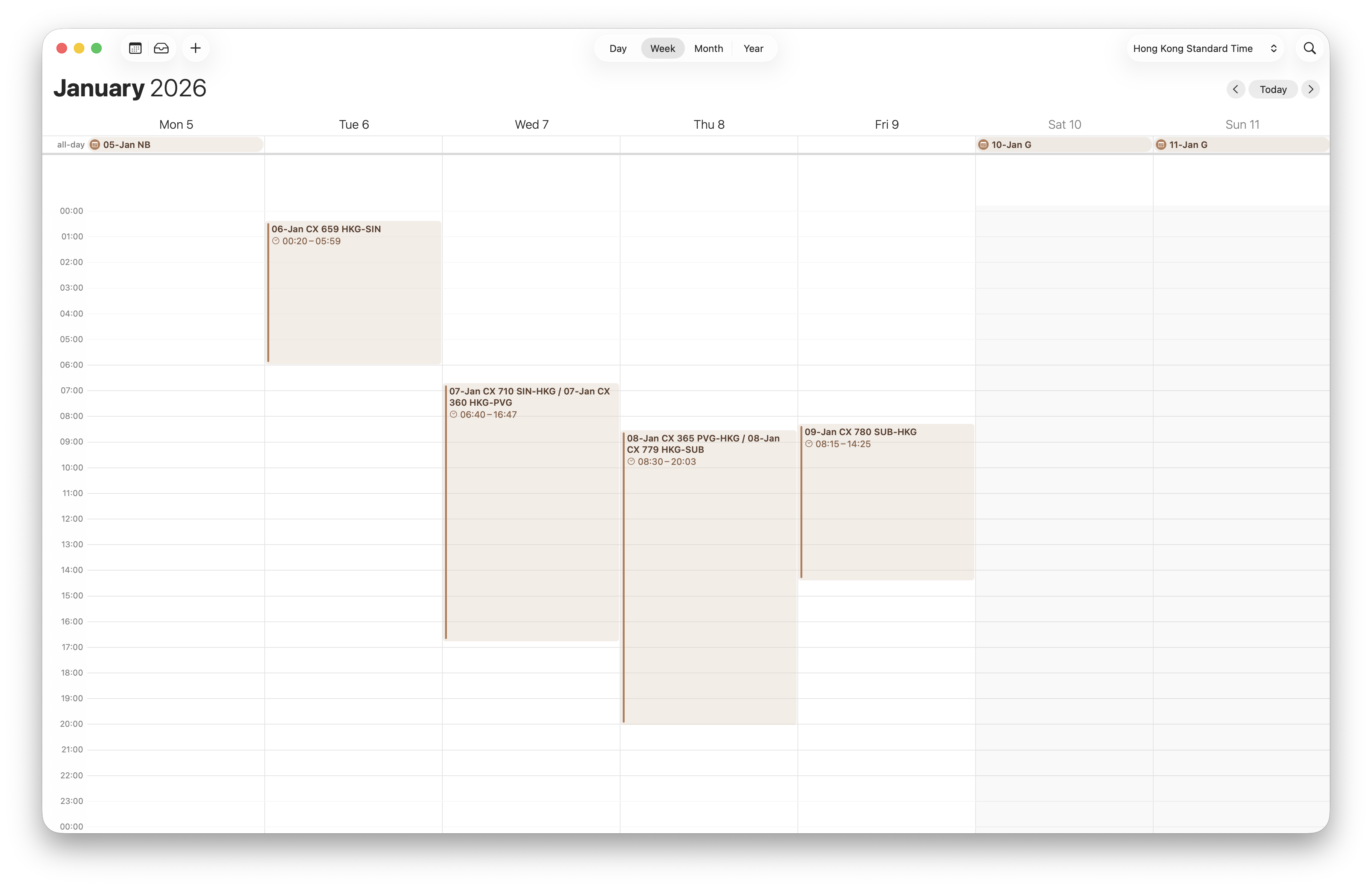
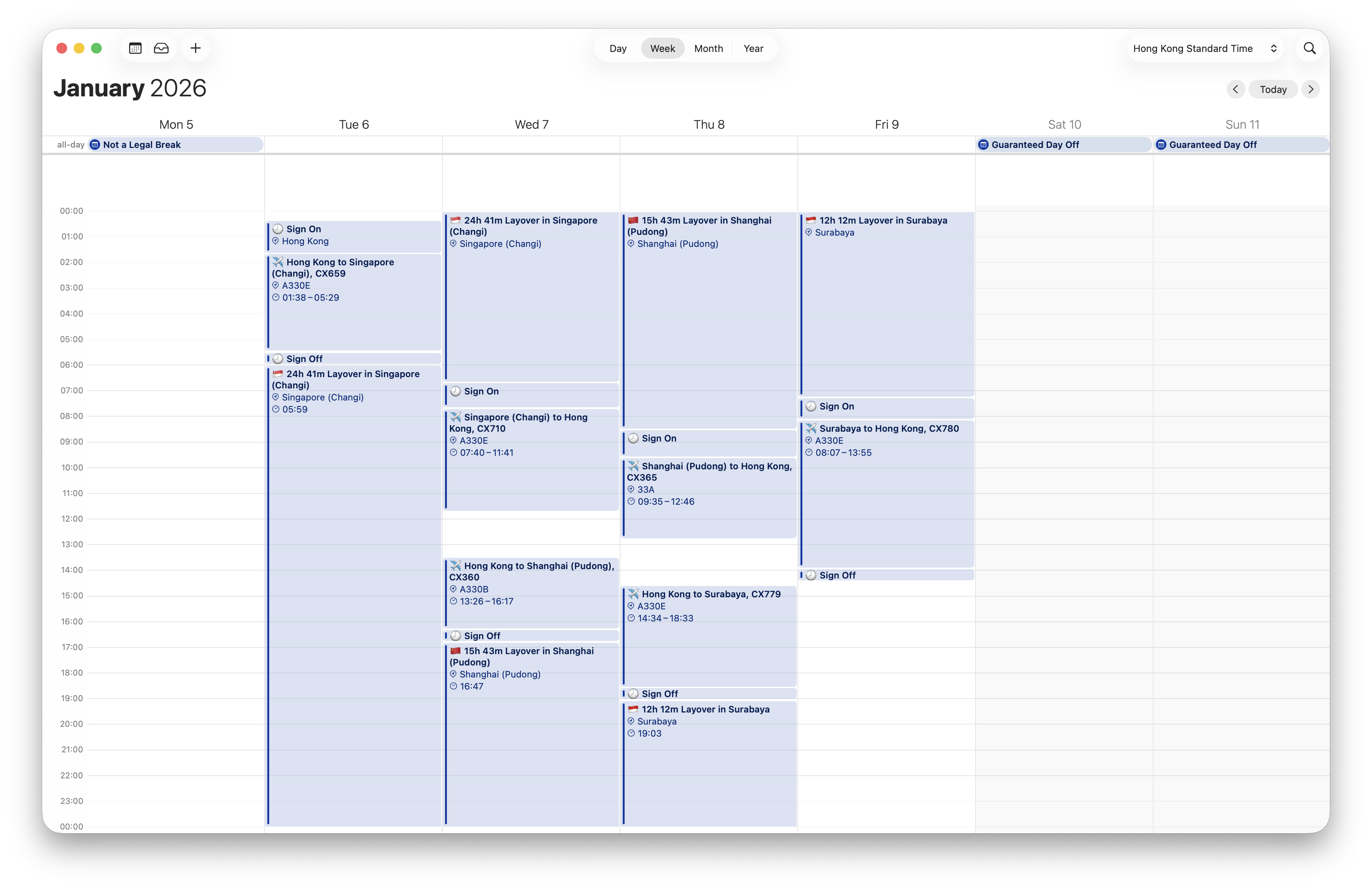
Compare the standard Cathay export with CXRoster’s individual flights, sign-on, sign-off and layovers. Tap Get started.

Your roster in Apple Calendar. A little easier to plan around.
Follow the six screens in CXRoster. Importing your roster comes after setup.
Compare the standard Cathay export with CXRoster’s individual flights, sign-on, sign-off and layovers. Tap Get started.
Select Flight Crew or Cabin Crew for the right import instructions. Both is selected by default: one calendar for you, another to share. You can also choose Only for Myself or Only to share.
iOS will ask for full calendar access. This lets CXRoster find your Cathay export and save your roster into your chosen calendars.
For Calendar for Myself and Calendar for Sharing, choose Create new or Choose existing. If you chose only one purpose, you’ll see only that calendar.
On the next screen, name any new calendars or select existing ones. Onboarding uses writable iCloud calendars. New calendars are saved there automatically; existing calendars keep their names.
Review your crew type, purpose and calendar names. Tap Edit to change a choice, or Finish setup to enter the app. How to import opens a separate guide, also available later in Settings → How to import.
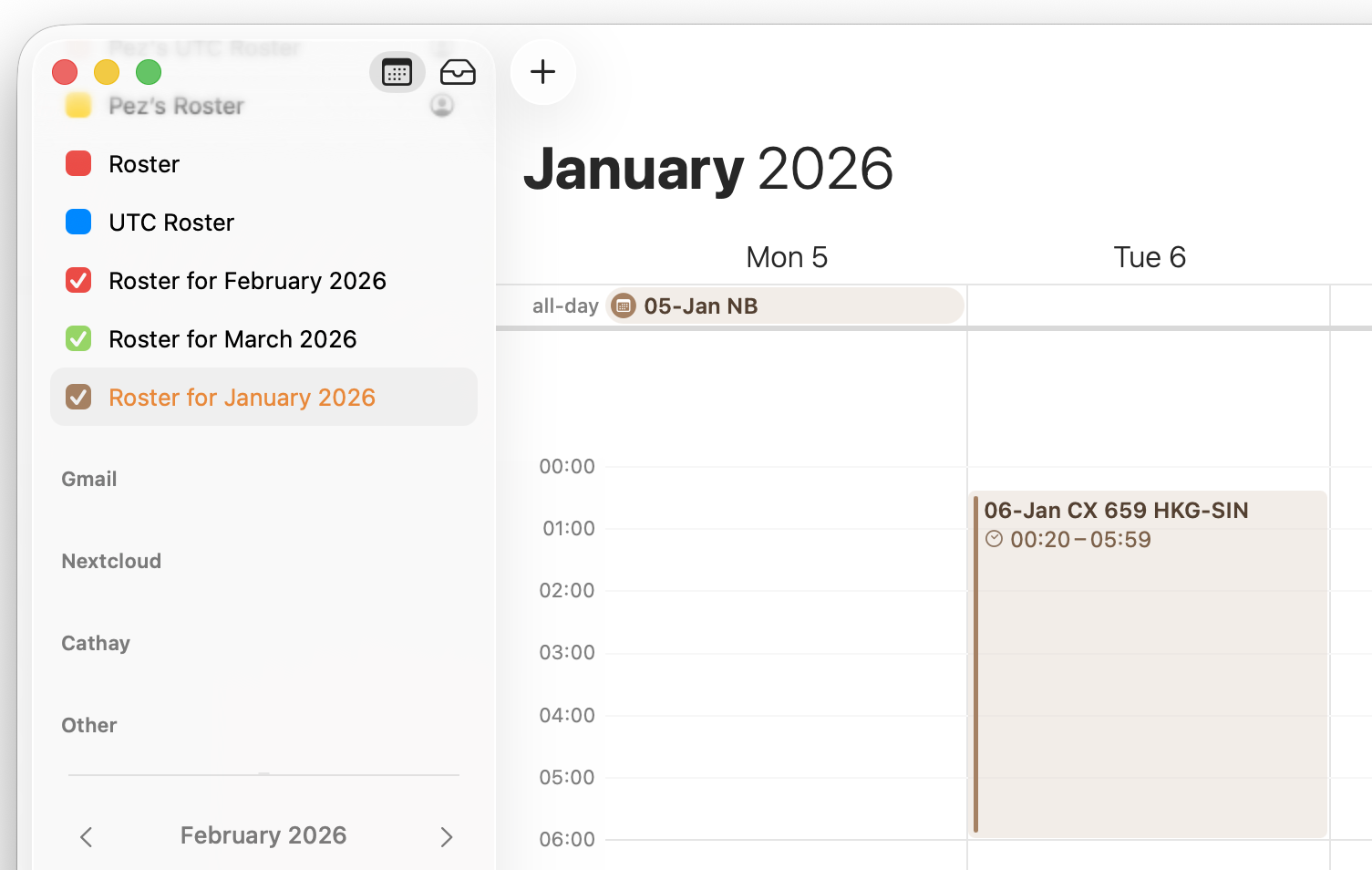
Use dedicated roster calendars, separate from personal reminders and Cathay’s monthly export. If iCloud Calendars is unavailable, turn it on in iPhone Settings before continuing.
After setup, export a month from your Cathay app, then tap + in CXRoster. Cathay Calendar is the recommended route in supporting beta builds.
Crew Connect compatibility is still being tested. Cabin-duty decoding needs a real exported calendar and matching roster sample. Keep the original calendar until your import has been checked; source deletion starts off for Cabin Crew.
In Crew Link Mobile, choose Export Roster as .ics File and open it with CXRoster. No need to save the file first. The + button opens Cathay Calendar import, not a file picker.
For Flight Crew, Delete original Cathay calendar defaults on when the source can be deleted. Switch it off to keep the original. Deletion follows a verified import and requires no parser warnings and an unchanged original. If these checks fail, the original stays in place. iCloud deletion also applies to your other synced devices.
Check the imported dates and duties against your official roster, which remains authoritative. After changes, refresh, export and import again.
Your roster belongs alongside the rest of your life, in Apple Calendar.
Open Settings → How to import in CXRoster, or visit Support for help with calendar access, imports and sharing.